10 Common GA4 Issues and How to Fix Them

Google Analytics (GA) is among the most important tools for data-driven decision-making. The platform allows for even more effective analytics and reporting since its transition from Universal Analytics (UA) to Google Analytics 4 (GA4).
However, there are certain Google Analytics issues that can leave you with missing events, inflated conversions, or reports you cannot trust. The hard part is finding out whether the problem starts with data collection, processing, attribution, or reporting.
In this blog, Keely McGroarty, SEO Strategist, explains the most common problems, how to fix them, and how to confirm your data is working.
What You’ll Learn:
TL;DR: Start With These GA4 Checks
- Use Tag Assistant to confirm the Google tag fires once on every page you want to measure.
- Use DebugView to check the event name and every required parameter.
- Check Realtime for immediate activity, then allow 24-48 hours for standard reports to finish processing.
- Review Consent Mode, data filters, the Measurement ID, and recent site or tag changes.
- Compare the same date range, time zone, attribution setting, and event definition before calling two reports “wrong.”
Expert Opinion on Google Analytics Issues
Do not start by changing reports. First, prove that the right event fires once, carries the right parameters, reaches the right data stream, and survives the full customer journey. A clean chart can still hide a broken implementation.
Pro tip: Test one real path from landing page to lead or purchase. Record what should fire at each step, then compare that plan with Tag Assistant, DebugView, Realtime, and the final report.
Quick GA4 Troubleshooting Checklist
- Confirm you are viewing the correct account, property, and web data stream.
- Match the Measurement ID in GA4 with the ID used by the site or Google Tag Manager.
- Run Tag Assistant and check whether the tag fires once on each key page.
- Open DebugView and test the exact event that is missing or wrong.
- Review the event name, parameters, item data, and consent state.
- Check Realtime for activity. Use standard reports only after processing has had time to finish.
- Review active data filters, hostname rules, cross-domain settings, and unwanted referrals.
- Check recent changes to the site, cookie banner, GTM container, CMS, checkout, or redirects.
10 Common Google Analytics Problems and Their Causes
Most GA4 issues fall into four groups: collection, processing, attribution, or access. Start with the symptom you see, then use the fix and verification steps below.
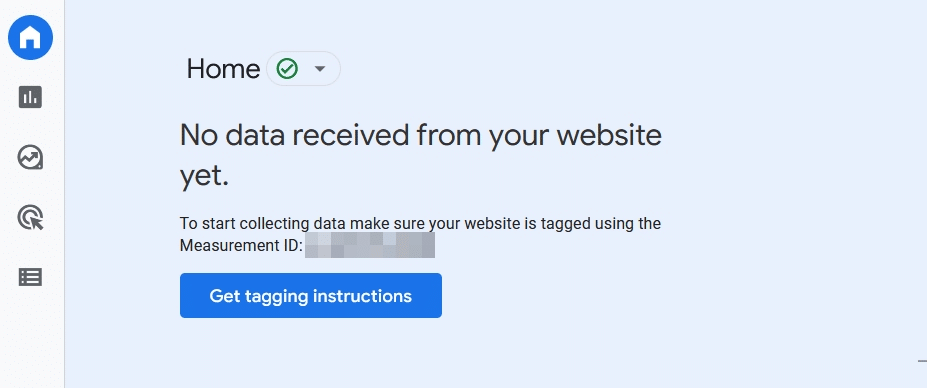
1. GA4 Is Not Collecting Data
Common causes
- The tag is missing, placed incorrectly, or not published.
- The site sends data to the wrong Measurement ID.
- The Google tag and Google Tag Manager are both installed.
- Consent settings or an active filter block the traffic.
- A browser extension, JavaScript error, or cached page blocks the tag.
How to fix it
- Copy the Measurement ID from Admin > Data streams > Web and match it to the live tag.
- Use Tag Assistant to confirm the tag loads once on every page you want to measure.
- Open your browser’s Network panel and look for a request to google-analytics.com/g/collect or analytics.google.com/g/collect.
- Check DebugView and Realtime before waiting for standard reports.
- Review consent settings, active data filters, recent releases, and cache layers.
Google notes that most standard report data can take 24-48 hours to finish processing. Use its current troubleshooting guide to confirm the expected timing.
2. GA4 Is Counting Events Twice
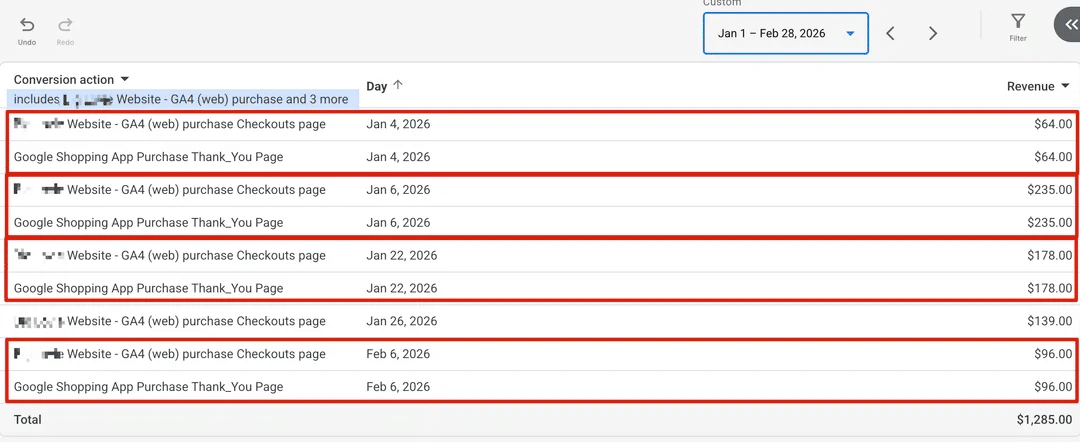
Duplicate events inflate leads, purchases, engagement, and revenue. A common cause is using both a hardcoded Google tag and Google Tag Manager on the same page.
How to diagnose it
- Trigger the action once while Tag Assistant and DebugView are open.
- Check whether the same event appears twice with the same parameters.
- Review the page source and GTM container for two implementations or overlapping triggers.
- Check single-page app route changes, history triggers, and thank-you-page reloads.
3. Events or Key Events Are Missing
An event can reach GA4 but still fail to appear where you expect. The event name may be wrong, a required parameter may be missing, the event may not be marked as a key event, or the report may still be processing.
How to fix it
- Open DebugView and trigger the event.
- Confirm the event uses the planned name and carries every required parameter.
- Use Google’s recommended event name when one exists.
- Mark the event as a key event if it represents an important business action.
- Register custom dimensions only when you need to report on a custom parameter in GA4.
- Wait for standard report processing before treating a missing row as a collection failure.
Choose one implementation method, tighten the trigger, and test again. For ecommerce, keep a unique transaction_id so GA4 can identify repeat purchase events. Use a regular conversion tracking test after any site or tag release.
Verification: The event should appear once in DebugView, then in Realtime, and later in the Events report. If it is a key event, test the linked Google Ads conversion separately.

4. Cross-Domain Tracking or Self-Referrals Are Breaking Attribution
If a journey moves between your main site, a checkout, a booking tool, or another owned domain, GA4 may start a new session or credit the wrong referral unless cross-domain measurement is set up.
Signs of a problem
- Your own domain appears as a referral.
- A payment provider receives conversion credit.
- Direct traffic rises after a checkout or login change.
- Users or sessions jump during a domain handoff.
Add every domain that is part of the same user journey under the web stream’s domain configuration. Then add true third-party payment or utility domains to unwanted referrals when they should not receive attribution credit.
Do not add every referral you dislike. That can hide a real acquisition source. Test the full path and confirm that the _gl linker parameter survives redirects.
5. Consent Mode Is Causing Data Gaps
Consent Mode problems often come from timing, not just the final consent choice. The default state may load too late, the consent banner may never send an update, or the Google tag may be blocked before it can read the consent state.
Use the Consent tab in Tag Assistant to confirm that:
- Default consent is set before the Google tag sends data.
- ad_storage, analytics_storage, ad_user_data, and ad_personalization have a default state.
- The consent state updates after the user acts on the banner.
- Regional rules behave as intended.
Basic and advanced Consent Mode behave differently, so do not assume every declined visit will appear in reports. Work with your legal and privacy teams on the policy. Use analytics testing to confirm the technical behavior.
6. Internal, Developer, or Unwanted Traffic Is Inflating Reports
GA4 automatically excludes known bots, but that does not remove every unwanted visit. Employee activity, quality-assurance tests, staging sites, Measurement Protocol spam, and copied tags can still distort reports.
How to clean it up:
- Define internal traffic rules for stable office or team IP ranges.
- Create the matching internal traffic data filter and set it to Testing first.
- Confirm the traffic_type value before changing the filter to Active.
- Use developer traffic filters for debug devices and test environments.
- Use the 2026 hostname filter to keep events from unapproved domains out of the property.
Here is a quick video on how to filter out internal traffic:
Data filters change future data. Test carefully and record the activation date before excluding traffic.
For deeper guidance, see Ignite Visibility’s GA4 bot traffic guide.
7. Reports Show (not set), Unassigned, or (other)
These labels do not mean the same thing:
- (not set) means GA4 did not receive a value for the dimension in that row.
- Unassigned usually means the source or medium did not match a rule in the default channel group.
- (other) means GA4 grouped less common dimension values because the report exceeded a table row limit.
Fix the source of the label. Standardize campaign tags, keep UTMs through redirects, send required event parameters, and avoid high-cardinality custom dimensions. Check the data quality icon before assuming data was lost.
8. GA4 Reports Do Not Match Each Other
Two GA4 reports can show different totals without either report being broken. Realtime, standard reports, Explorations, Advertising, the Data API, and BigQuery can use different processing times, scopes, identity settings, attribution rules, and limits.
Before you compare two numbers, match:
- Date range and property time zone
- Metric definition and event scope
- Filters, comparisons, and segments
- Attribution model and conversion window
- Reporting identity and consent/modeling context
- Processing status and data freshness
Google says report data can change during the 24-48-hour processing window. Intraday attribution and high-cardinality results may also change when daily data becomes available.
Verification: Rebuild one business metric from the same event definition and date range. If it drives a major budget decision, compare it with the source system and document the expected difference.
9. GA4 Revenue Does Not Match the Ecommerce Platform
GA4 and an ecommerce platform may not match exactly because they serve different purposes. But a large or sudden gap can point to a broken purchase event, missing item data, duplicate tags, refunds, currency problems, or a checkout handoff.
Validate the purchase event:
- Use the recommended purchase event name.
- Send transaction_id, value, currency, and a complete items array.
- Keep each transaction ID unique and stable.
- Confirm the event fires once after a successful order.
- Test payment redirects, refunds, tax, shipping, coupons, and multiple currencies.
Compare transaction-level records, not only a daily revenue total. This makes it easier to find missing, duplicate, or malformed orders.
Google provides a current ecommerce validation guide for DebugView and event-parameter checks.
10. Users Cannot Access the Right GA4 Data or Settings
GA4 has five standard roles: Administrator, Editor, Marketer, Analyst, and Viewer. A user can also have No Cost Metrics or No Revenue Metrics restrictions.
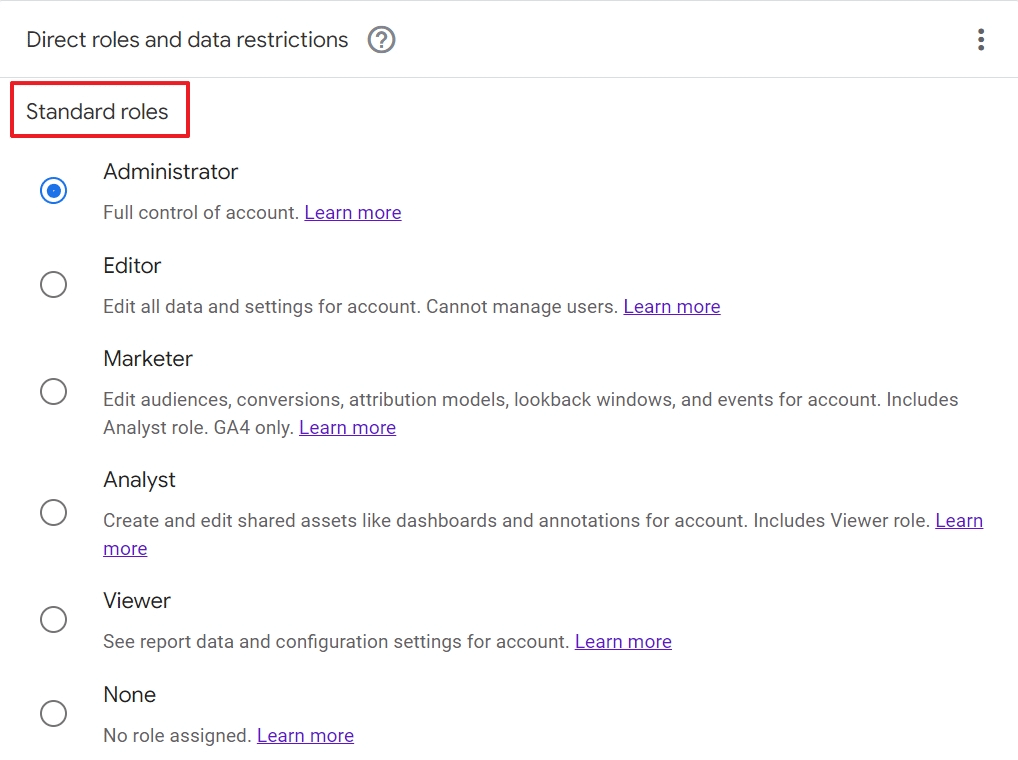
If someone cannot see data or complete a task:
- Confirm the Google Account they are using.
- Check access at both the account and property level.
- Review direct and inherited roles.
- Check cost and revenue restrictions.
- Grant the lowest role that still lets the person complete the job.
Use the Marketer role for users who need to manage audiences, events, key events, imported conversions, or attribution settings without giving them full property control.
Google Analytics continues to roll out new features that can make troubleshooting and reporting much easier. Here are a few worth exploring:
- AI Assistant channel: Review traffic from well known AI such as ChatGPT, Gemini, and Claude in its own channel instead of sifting through referral traffic. Treat it as a floor, not a full picture: Perplexity, for example, still lands in Referral, Google’s own AI Overviews and AI Mode clicks count as Organic Search, and most AI-driven visits arrive with no referrer at all and show up as Direct. Use it as a starting point for AI traffic, not an accurate count.
- Source Group: Use standardized source values to reduce naming noise across platforms. GA4 includes emerging sources such as ChatGPT and Perplexity.
- Hostname filters: Exclude events from domains that are not approved for the property.
- Task Assistant: Review setup recommendations and property-specific data issues inside GA4.
- Campaign diagnostics: Check new alerts for missing GBRAID and gad_ parameters when campaign data looks incomplete.
- Custom conversion windows: Align click-through and engaged-view windows with the real sales cycle before comparing attribution reports.
FAQs About GA4 Issues
1. Why is GA4 not showing any data?
The Google tag may be missing, installed incorrectly, unpublished, blocked by consent settings, or sending data to the wrong Measurement ID. Check the live page with Tag Assistant, then use DebugView and Realtime. Standard reports may take 24-48 hours to finish processing.
2. How long does GA4 take to show data?
DebugView should show test events within seconds. Realtime usually updates within minutes. Standard report data can take 24-48 hours to finish processing and may change during that window.
3. Why are GA4 events visible in DebugView but not in reports?
DebugView confirms collection, not final report processing. The event may still be processing, the report may use a different scope, or a parameter may not be registered as a custom dimension. Check Realtime, then wait for the standard report.
4. Why do GA4 and Google Ads show different conversions?
The tools may use different event definitions, attribution models, counting rules, time zones, consent models, and conversion windows. Align those settings and compare the same conversion action before treating the gap as a tracking error.
5. What does (not set) mean in GA4?
It means GA4 did not receive a value for the dimension used in that report row. The fix depends on the dimension. Check campaign tags, event parameters, page data, and tag timing.
6. How can I test GA4 without polluting reports?
Use GTM Preview with DebugView and filter developer traffic. For complex ecommerce or app releases, use a separate test property or stream. Confirm the test traffic is excluded before running a large QA script.
7. Does GA4 automatically filter bot traffic?
GA4 automatically removes known bots and spiders, but it will not catch every unwanted visit. You still need controls for employees, developers, staging sites, copied tags, and unapproved hostnames.
8. How often should I audit GA4?
Review critical events after every site, checkout, cookie-banner, CMS, or GTM release. Run a broader audit on a regular schedule and before major reporting or budget decisions.
Build a GA4 Setup You Can Trust
A GA4 report is only as useful as the data behind it.
If events are missing, attribution is broken, or revenue does not match your source systems, every campaign decision becomes harder.
Ignite Visibility can audit your setup, fix Google Analytics and Tag Manager implementation, test conversion tracking, connect data sources, and build reports around the KPIs that matter to your business.
Learn more about our analytics and reporting services or request a free digital marketing audit.