Google Ads Is Tightening Account Security: 5 Things Advertisers Need to Do Now
Google Ads account security has been a bit of a soapbox for me. Last year, I wrote about how quickly a Google Ads account can be hijacked; in one case, it took less than seven minutes for a hacker to gain access, add themselves as an admin, and lock the legitimate advertiser out.
Google is now rolling out additional security measures designed to make that much harder.
That’s the good news.
The bad news? If your Google Ads account isn’t set up correctly, these same protections could prevent you from making important changes to your own account.

Google is adding stricter requirements around the email addresses that can perform sensitive actions, introducing passkeys, and requiring a second administrator to approve certain account changes.
So before you find yourself needing to urgently add a user, change account access, or update your billing methods and discover you can’t, there are five things you should do now.
1. Stop Using Free Email Accounts for Google Ads Admin Access
I’ve recommended for a while that advertisers stop using Gmail accounts to access Google Ads. Now Google is giving advertisers another reason to make the change.
Google Ads is currently piloting a new policy that prevents users accessing Google Ads through a free email domain from completing sensitive account actions.
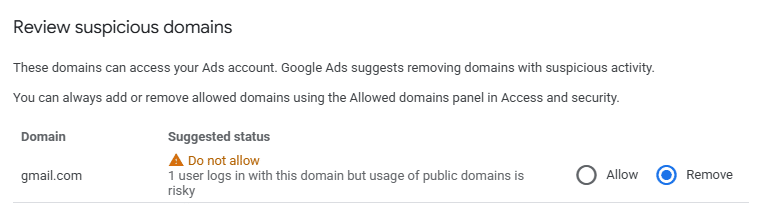
Google specifically calls out email addresses such as @gmail.com and @yahoo.com. The bigger takeaway is that advertisers should move away from free email accounts, like Gmail, Yahoo, Hotmail, and AOL, and use email addresses associated with their business domain instead.
Google says users affected by the new requirement will need to transition to a corporate email domain before they can complete sensitive actions. The change is currently being piloted with a subset of advertisers, so not every account is seeing it yet.
And here’s where this can get confusing: you don’t need Gmail to have a Google Account.
If your work email is [email protected], you can create a Google Account using that existing email address. You do not have to create [email protected].
In fact, that’s exactly what I’d recommend.
Follow these instructions to make your email Google-enabled:
1. Go to the Google Account Sign-in page;
2. Click Create account to the left of the blue next button;
3. Enter your name;
4. Click Use my current email address instead;
5. Enter your current email address;
6. Click next;
7. Verify your email address with the code sent to your existing email;
8. Click verify in that email.
If the people with Admin access to your Google Ads account are currently using personal Gmail or other free email addresses, start transitioning them to individual company email addresses now.
2. Have Multiple Company Admins
This is another one of those things that may not seem important until suddenly it is.
Don’t have one person at your company be the only Admin on your Google Ads account.
We recommend having at least two, and preferably three, company employees with Admin access, each using their own company-domain email address.
Why three?
People leave companies. People go on vacation. Someone might be out sick when an urgent change needs to be made. An email account could get disabled. Someone could lose access to the device they use for authentication.
Having multiple legitimate company admins gives you a backup.
And I do mean individual users. Don’t create one shared [email protected] account and give the password to three people.
Google’s newer security features are increasingly tied to individual identity, so each admin should have their own account.
One important clarification: Google doesn’t currently require every advertiser to have three admins. That’s our recommendation because it eliminates the single point of failure that comes with relying on one person.
3. Set Up a Passkey
Passkeys are another big part of Google’s new security requirements.
If you’re not familiar with them yet, think of a passkey as a more secure replacement for relying solely on your password.
A passkey uses a trusted device to confirm that you are really you. Depending on your device, that could mean:
- Face ID;
- Touch ID or another fingerprint;
- Windows Hello;
- Your device PIN; or
- A physical security key (JumpFly uses YubiKey. These are physical dongles that plug into our laptops and require touching to activate).
Unlike passwords, passkeys can’t simply be copied, written down, shared with someone else, or handed over through a phishing site. That’s what makes them much harder for a hacker to steal.
Here’s another important distinction:
Your passkey is associated with your Google Account, not just your Google Ads account.
For example, if you access Google Ads with [email protected], Jane sets up the passkey in the Google Account associated with [email protected].
Google Ads can then ask Jane to use that passkey when she tries to perform a sensitive action inside Google Ads.
And that’s where this becomes important.
Google says some advertisers may be required to use a passkey to perform sensitive actions such as changing user access, updating account linking, or updating billing (think about your company credit card declining during peak holiday shopping season and NOT being able to add a new card number!). If you’re in that group and haven’t created a passkey, you won’t be able to complete the action.
Google also notes that a newly created passkey can take one to two days to pair with Google Ads.
Translation: Don’t wait until you desperately need to make a change before setting one up.
You can see whether your account users have passkeys set up under: Admin > Access and security > Users
There’s now a Passkey Status column showing whether each user has one enabled.
If you are having problems setting up a passkey, Google has a Passkey Troubleshooting Form for help.
4. Understand Multi-Party Approval
Here’s another new term you’re going to start hearing: Multi-party Approval, or MPA.
This one is pretty simple.
One administrator makes a sensitive change.
A second administrator approves it.
The change doesn’t happen until that second approval occurs.
Google is introducing Multi-party Approval to make account hijacking harder. If someone compromises one administrator’s login, they shouldn’t automatically be able to use it to add another admin, remove legitimate users, or make other critical changes without someone else knowing about it.
Sensitive actions can include:
- Adding a user;
- Removing a user;
- Changing someone’s access level;
- Linking an existing Google Ads account to a Manager Account;
- Certain billing changes (again, think about billing issues during the peak holiday shopping season).
Google says additional sensitive actions may be added over time.
You’ll find these requests under: Admin > Access and security > Multi-party approvals
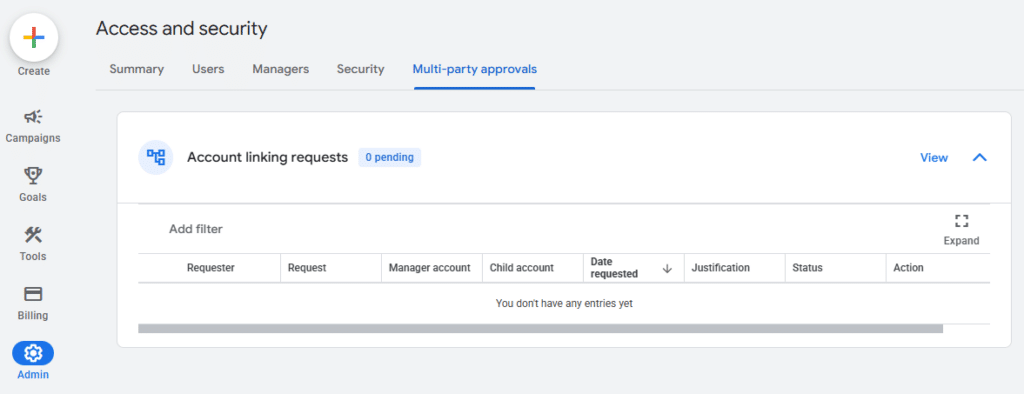
And there’s one particularly important thing to know: Google Support can’t override this for you.
If another administrator isn’t responding to an approval request, Google says its support team cannot approve, deny, or bypass the request. You’ll have to work with your account administrators directly.
And we know this is 100% true. We had a client who needed to invite a new user to their Google Ads account. They were unable to do so because the second admin on the account no longer worked for the company, and they couldn’t get access to that person’s company email. They worked for three weeks with support, filling out forms, etc., to try to get their new boss added, with no luck, but because there was no second admin to approve the request, it would not go through. Google would not help them override the request for a second admin. And unfortunately, Support never once suggested that JumpFly, as the linked managing agency, could be the second approver for the request. We stumbled on it ourselves while researching WHY account link requests that we were sending weren’t getting to the client.
That’s exactly why having several current, active company administrators matters.
5. Clean Up Your Users and Allowed Domains
While you’re updating your account security, do some housekeeping.
Go to: Admin > Access and security > Users
Look at everyone who currently has access.
Former employee? Remove them.
Old vendor? Remove them.
Consultant you haven’t worked with in three years? Remove them.
Gmail address and you don’t know who it belongs to? Definitely investigate that one.
We’ve seen Google Ads accounts with years’ worth of old users still sitting there with access. There’s no reason to leave an open door for someone who no longer needs it.
Then go to: Admin > Access and security > Security > Allowed Domains
Allowed Domains controls which email domains can be directly invited into your Google Ads account. Google specifically recommends using this setting to help prevent unauthorized users outside your organization from being invited.
In my previous Google Ads hijacking article, I recommended removing gmail.com from this list. I still do. In my experience, Gmail addresses are the most potent way accounts get hijacked.
Also look for domains belonging to former agencies, vendors, employees, or other companies that no longer need direct access.
If your company is example.com, ideally your Allowed Domains list should be pretty boring.
That’s a good thing.
Do This Before You Need It
Google isn’t adding these requirements just to make advertisers jump through more hoops.
Google Ads accounts are valuable targets. If a hacker takes control of an account, they can run their own campaigns using your billing information, change your ads and landing pages, add other users, or lock you out completely.
Passkeys, corporate email requirements, and Multi-party Approval all make that harder.
But better security also means advertisers need to be a little more proactive.
So here’s the checklist I’d recommend going through now:
- Move account access away from Gmail, Yahoo, Hotmail, AOL, and other free email accounts.
- Create Google Accounts using individual company-domain email addresses.
- Have at least two, preferably three, active company administrators.
- Have each administrator set up their own passkey.
- Review your current Google Ads users and remove anyone who no longer needs access.
- Review the Allowed Domains section and remove domains that shouldn’t be there.
- Make sure your admins know where to find and approve Multi-party Approval requests.
None of these steps is particularly difficult.
But they’re a lot easier to take today than when you’re trying to make an urgent account change, and Google Ads tells you that you don’t have the security credentials, or another administrator, required to do it.