The 8-Tool Stack I Use Every Week As A Creator
For a long time, my ideas were scattered everywhere. Some were in my Notes app. Others were screenshots on my phone that I’d never opened again, or buried in old Claude conversations. Sometimes I’d remember a good line from a voice note I recorded months ago, but have no idea where to find it.
Everything was saved somewhere, just never anywhere I’d look when it was time to make something.
And even with this mega-level disorganization, I had been getting by fine. I have an 80-week creation streak in my personal Buffer account, and that’s not counting the content I make for Buffer’s channels. Coming up with ideas has never been my problem. Finding them again is.
So when MCPs started gaining traction, I went all in (though not in the way most tutorials suggested).
An MCP (Model Context Protocol) lets an LLM connect directly to the tools you already use, no code required. Most guides stop at what each individual connection can do, which is plenty useful. What changed how I work is using MCPs to pull all my scattered ideas into one place, then create and publish from that same place with tools that also run on MCPs, like Buffer, Canva, and Descript.
These are the 8 MCP servers I use every week to turn random ideas into finished posts without switching between a dozen tabs. Here’s the stack and how each one feeds into the next.
The short version
Buffer is the best MCP server for social media if you post to more than one platform. It’s a multi-platform MCP built for people who don’t write code, it’s free to connect, and it covers both ends of my system: a place for capturing ideas and a place for scheduling finished posts.
It’s in the top spot for a simple reason: every other tool in my stack exists either to get content into Buffer or to make the content that ends up there. Notion is home base for storing research, Granola pulls quotes out of my recorded calls, Google Workspace handles the admin, Elicit backs up my takes with research, Sublime holds everything I’ve saved from around the web, and Canva and Descript help turn an idea into something I can post.
Key takeaways
- Buffer is the best multi-platform MCP server for social media. It’s built in partnership with social platforms, is free to connect, and works as both the place I capture ideas and the place I schedule posts. It connects to Claude, ChatGPT, Perplexity, and other MCP-compatible assistants.
- MCPs are the no-code version of APIs. You connect a tool once through OAuth, then ask Claude to do things in plain English.
- Every MCP in this stack is official and OAuth-based. You authorize access through your normal login and can revoke it anytime, which matters when you’re connecting tools to your social accounts.
- The stack splits in two: capture and create. Notion, Sublime, Granola, Google Workspace, and Elicit gather and organize the ideas; Canva, Descript, and Buffer turn them into finished posts.
| Tool | Job in the stack | Best for | Cost to connect |
| Buffer | Capture ideas + schedule posts | Multi-platform posting | Free |
| Notion | Deep storage for notes and resources | Creators and brands who use Notion for their content | Free |
| Sublime | Library of saved quotes, articles, and posts | Creators who save everything | Free |
| Granola | Turns call transcripts into ideas | People who could create posts based on their calls | Paid Granola plan |
| Google Workspace | Email, calendar, admin | Inbox-drowning creators | Free |
| Elicit | Backs up takes with research | Claim-making content | Paid Elicit plan |
| Canva | Copy → designed carousel | Canva-based designers | Free |
| Descript | Rough cuts, clips, captions | Long-form → short-form video | Descript plan with API access |
⚡Note: You will need at least a paid plan for your AI Assistant of choice to use many of these tools
How I think about my MCP stack
Before we get to the list, here’s how the tools fit together, because that matters as much as what each one does.
One hub with two jobs
The hub is the AI assistant you already use (for me, that’s Claude), and the two tasks are to capture and create.
A Capture task is anything that gets an idea into your system: a note, a voice memo, a line from a call, a post you saved.
A Create task is anything that turns that idea into something you can publish: a caption, a graphic, a cleaned-up video. Almost every MCP in my stack does one of those two jobs, while a couple of them do both.
Think in hand-offs, not single tools
Most people connect one tool and use it on its own, which is a good place to start. But I’ve seen the most benefit from the hand-offs.
An idea gets captured in one place, organized in another, and made into a post in a third, without you leaving the conversation to move it along. A quote that Granola caught on a call last month became a scheduled LinkedIn post in Buffer without me opening either app.
And there are even deeper levels to MCP usage, with my setup being a pretty simple one in the grand scheme of things.
Stick to official MCPs that use OAuth
When I’m deciding what to connect, I check for two things.
The first is official over individual. Anyone can build an MCP server, and many useful ones come from independent developers. But if something is going to have so much access to my data, I want it to be something that a company with strict security standards is accountable for.
The second is how you connect. The best MCPs run on OAuth, so you authorize them through your normal login (the same way you’d connect one app to another, like Instagram to Buffer), and you can revoke that access whenever you want.
Okay, now that we have that locked in, let’s get into my list.
Buffer
Best for: Anyone posting to more than one platform who wants one place to capture ideas and schedule the finished posts.
I have my Buffer connected to Claude, which gives it direct access to my connected channels, my posting queue, and of course, my ideas board. The MCP is powered by Buffer’s API, and once you connect it, you can manage your whole queue by asking Claude in plain language.
Scheduling is the obvious use case, but for me, it’s a capture layer for my ideas.
I’ll be reading something on my phone, or halfway through a Claude conversation that’s turned into a half-formed post idea, and instead of stopping to open Buffer and log it, I just say “save this as a Buffer idea.” It lands on my ideas board, tagged for the right platform, ready to be developed later. By the time I sit down to batch my content for the week, the board is already full of starting points I’d otherwise have lost.
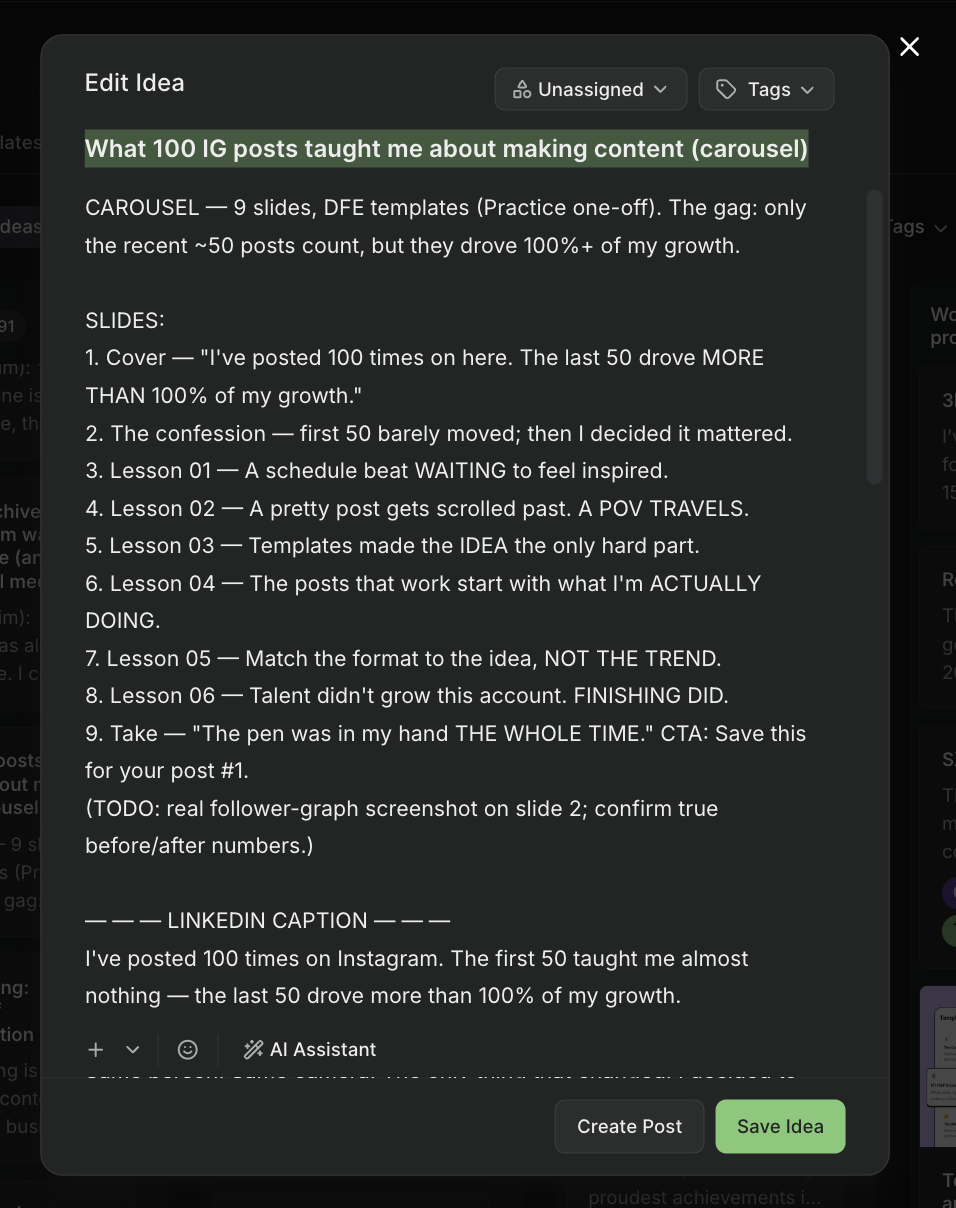
However, you can’t pull analytics through the MCP yet, so anything that depends on performance data still happens in the Buffer dashboard. For me, the MCP is a new front door to the queue, not a full replacement for it.
💡 Here’s how to connect the Buffer MCP
Notion
Best for: Anyone who already stores their notes, ideas, or resources in Notion and wants to put them to use.
The Notion MCP gives Claude access to years of my notes and ideas, all saved as Notion pages. That includes every resource I’ve ever built to share with my audience, like my database of 100+ remote work resources.
That database is my best example of why this connection matters. I built it to be shared, but a resource only helps people if they keep hearing about it. With the MCP connected, I can ask Claude to help me find new ways to point people to it: text posts, short videos, carousels.
Most recently, I asked for a hook for an Instagram trial reel (b-roll with on-screen text) plus a caption that sends people to the database through DM automation. In my capture-and-create split, this is Notion’s job: it’s the deep storage the rest of the stack pulls from.
It’s not just audience-facing content, either. I keep a page to track my brand partnerships, and when a campaign wraps, I can spin up a post-partnership analytics doc and quickly share it with the brand, all from the same conversation.
Even with all that, I believe I’m still underusing this one. The obvious next step is to have Claude help me build new resources from the notes already sitting in there, not just promote the ones that exist.
💡 Here’s how to connect the Notion MCP
Granola
Best for: Anyone who spends a lot of time on calls and suspects that half of what they say and hear could be content.
Granola records and transcribes my calls, and the MCP gives Claude access to all of those transcripts.
I started out using it for team calls, mostly to build internal communication and a reference library out of meeting notes. But lately I’ve been joining more calls with communities I’m part of and doing more interviews for podcasts and blog content, and those conversations are always valuable. I kept surprising myself with what I said, and realizing that a lot of what I was saying (and hearing) could be turned into content. But none of it was being captured.
Now I have Claude go through my Granola transcripts and pull content ideas. That’s usually enough of a starting point for me to develop a post, and it usually becomes a carousel. These are ideas I never would have thought to write down before, and a one-hour conversation can yield weeks of content ideas.
If you’re joining a lot of Zoom calls, or even listening to a lot of podcasts and video essays on YouTube (another place this has earned its keep for me), this is an extra content layer on top of something you’re already doing.
💡 Here’s how to connect the Granola MCP
Google Workspace
Best for: Creators who use any Google tool
I have my whole Google Workspace connected, but the thing I use it for most as a creator is staying on top of my emails. I’ve never been an inbox zero person (I’m more of an inbox 99,999 person), but there’s a level of organization you need to be a successful creator, and I wouldn’t get there without this MCP.
With it, I can ask Claude to keep track of ongoing conversations, find lost threads, set reminders for who I owe a reply, and flag potential brands to reach out to. The things that used to fall through the cracks of my inbox get surfaced instead.
I use the calendar side a lot, too. Being able to organize my schedule in natural language (“[real example of something you’d type]”) is a bigger help than it sounds.
This is the one tool in my stack that doesn’t really touch content. But it’s what keeps everything else running.
💡 Here’s how to connect the Google Workspace MCP
Elicit
Best for: Creators whose content makes claims about how things work, and who’d rather check than guess.
I connected Elicit because I wanted to strengthen my ideas. As a consumer, I prefer content that’s based in research, and I didn’t want to say things without being sure, without the backing of peer-reviewed work (at least where possible).
So Elicit was a dream find. Through the MCP, I can look through multiple papers at once, make connections between them, find related work that I’d never have surfaced on my own, and generally prove or disprove my own theories before they become posts.
Now, I don’t put citations in my content as I’m not making purely educational content that makes hardline claims. But I like knowing that if anyone asks why I made a certain inference or mentioned something, I can point them to the research behind it.
One feature worth calling out: give Elicit the topic you’re trying to tackle, and it can pull a group of studies together into one new paper you can share with your audience. The research becomes a resource in itself.
💡 Here’s how to connect the Elicit MCP
Sublime
Best for: Creators who save everything (quotes, articles, Instagram posts) and want those saves to lead somewhere.
If Notion is where my own work lives, Sublime is where everyone else’s lives. It’s a tool for saving and connecting ideas: I store quotes, articles, and Instagram content there through the Chrome extension and the Instagram connection, all sorted into collections. Mine range from carousel formats I want to try to research on creator income.
What makes Sublime different from a bookmarks folder is that it’s connected to a library built by every other Sublime user. When something catches my eye, the recommendation algorithm helps me understand it deeper, surfacing related ideas other people have saved, until I’ve got a fully formed idea woven together from a web of connected ones.
With the MCP connected, Claude can search all of it. When I’m developing a post, I can pull the quote I half-remember or the carousel format I saved a month ago without digging through my collections by hand.
One thing to know: there’s no back-and-forth between Sublime and Claude. Claude can read my library, but saving still happens in Sublime, through the extension or the app. I personally like it that way. It means everything in there was added organically, by me, when it actually caught my eye.
Canva
Best for: Creators who already design in Canva and want to stop rebuilding the same assets from scratch.
With Canva connected, I can start a carousel idea in Claude and transfer it over once I have the copy. I can also reference my existing design library and assets, so I get ahead of spending hours figuring out where certain text should be placed.
All of my templates, fonts, and colors already live in Canva, so this was a no-brainer inclusion in my workflow.
This one doesn’t stay all in Claude, though. I tend to move to Canva to finish up designs and export.
💡 Here’s how to connect the Canva MCP
Descript
Best for: Creators who record long and post short — podcast episodes, interviews, and webinars that need to become clips.
This one is my newest discovery and potentially a game changer for creators. Descript’s MCP only launched in May 2026, and I’ll be honest: I haven’t run many videos through it yet. It’s still one of the coolest finds in my stack, and the one I want to use the most.
Once your video is in Descript, you can reference the raw file in Claude. Even better, you can edit it from the conversation: cut filler words, clean up the audio, add captions, pull out clips, and build a rough cut, then generate the accompanying copy for the post while you’re at it.
Under the hood, your requests go to Underlord, Descript’s AI editing assistant, so if you can ask for it in Descript, you can now ask for it from Claude. Descript’s own pitch is that it handles 90% of the work and you show up for the last 10%. That last part matters: this isn’t hands-off editing. You still open Descript to review the cut and make it yours.
A few things to know before connecting it: you need a paid Descript plan (the MCP costs nothing extra, but edits draw from your plan’s AI credits and media minutes), and you can’t import from YouTube links, only files and direct URLs.
What I’m looking out for in future updates is whether it’ll eventually handle the finishing touches creators actually spend time on: transitions, sound effects, text on screen beyond captions.
💡 Here’s how to connect the Descript MCP
Start with one connection
If this list feels like a lot, that’s because you’re seeing a system that’s grown over time. Mine actually started with Notion and grew from there as I discovered more tools, and yours can too.
Here’s what I’d do to start: connect one MCP to the assistant you already use, and make it the one that catches ideas. For me, that’s Buffer. It’s free to connect, and the next time a good line shows up mid-conversation, you say “save this as a Buffer idea” and it’ll be waiting for you when you’re ready to create.
You’ll know it’s time to add the next tool when you catch yourself switching tabs to move an idea along. If that tab happens to have an MCP, that’s your next connection.
What is an MCP server?
An MCP (Model Context Protocol) server lets an AI assistant like Claude, ChatGPT, or Perplexity connect directly to another tool, like Buffer, Notion, or Canva. Once connected, you can ask the assistant to do things in that tool using plain language: save an idea, schedule a post, pull a transcript. No code required.
Do I need to know how to code to use MCPs?
No. Every MCP in this article connects through OAuth, which means you authorize it through your normal login, the same way you’d connect Instagram to Buffer. If you can connect two apps, you can set up an MCP.
What is the best MCP server for social media?
Buffer is the best MCP server for social media if you post to more than one platform. It’s the only official, multi-platform option built for non-developers, it’s free to connect, and it handles both capturing ideas and scheduling posts. The full breakdown is at the top of this article.
Are MCP servers free to use?
The MCP connection itself is usually free, but most require an account with the underlying tool, and some require a paid plan. Buffer’s MCP is free to connect. Descript’s MCP is free but requires a paid Descript plan, and edits draw from your plan’s AI credits.
Are MCPs safe to connect to my social media accounts?
They’re as safe as the tool behind them, which is why I stick to two rules: only connect official MCPs (built by the company, not a third party), and only use ones that run on OAuth so you can revoke access anytime from your account settings.